
User Guide · Reviews & Comments

Responding to
Customer Reviews

This six-step walkthrough covers the entire review response workflow—from finding a customer review in your dashboard to sending a personalized reply using templates and wildcards.

Ready to follow along? Log in to the Digital Dashboard.

Steps 6 actions
Estimated time ~30 seconds per review
You'll learn Templates · Wildcards · Reply flow
Scroll to begin
01/ 06

Open Reviews & Comments.

From the left sidebar, expand Interactions and click Reviews & Comments. This is the home of every review across every connected source — Google, Facebook, and beyond.
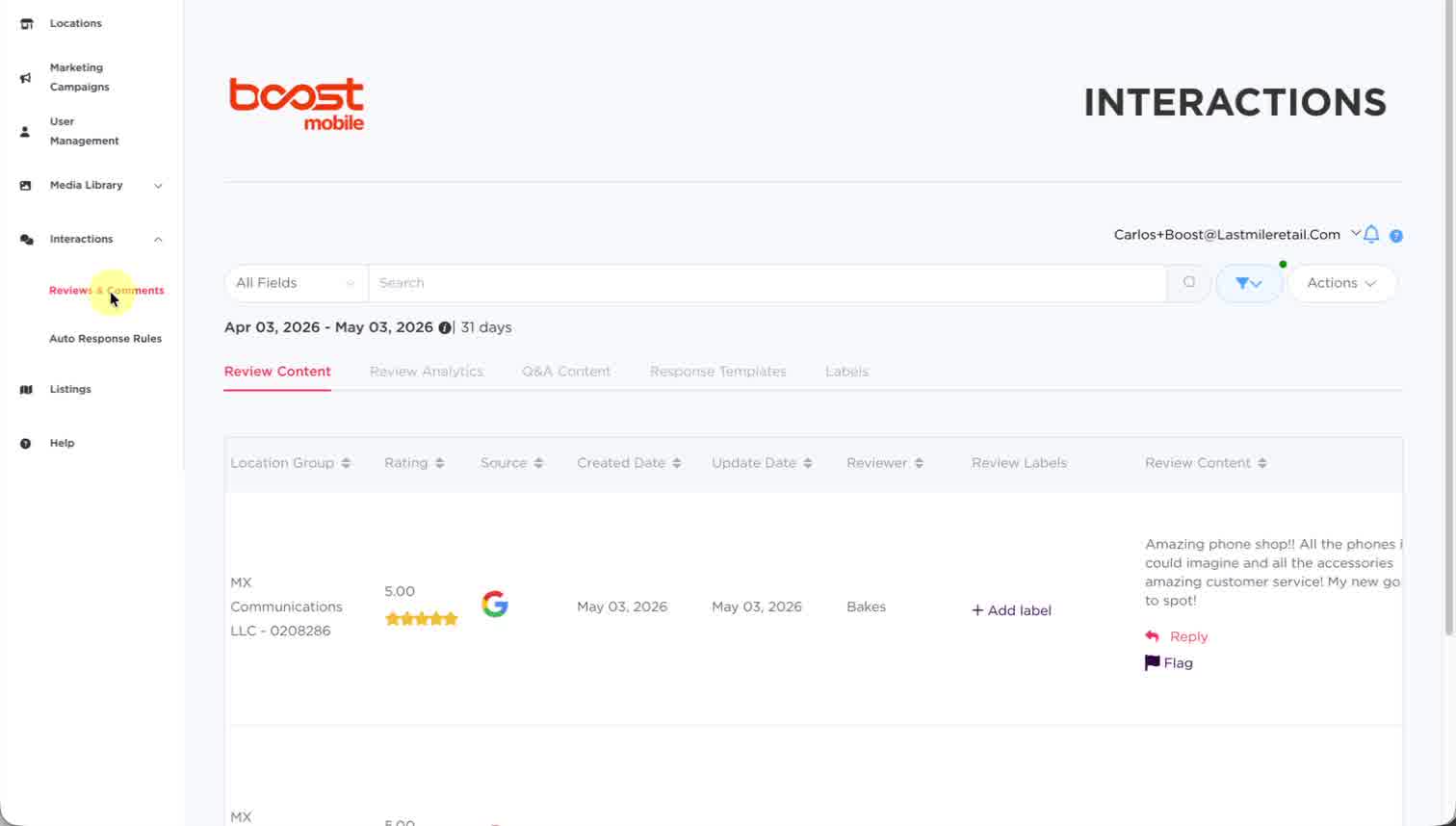
Where you are The Review Content tab shows all incoming reviews. Use the date range picker, filters, or search to narrow down to the ones that need a reply.
https://boostmobile.lastmileretail.com/dashboard/interactions
Sidebar with Reviews and Comments highlighted
1
Click Reviews & Comments
02/ 06

Find the review and click Reply.

Each row in the table is one review. Scan the Review Content column on the right to find the one you want, then click Reply directly under it.
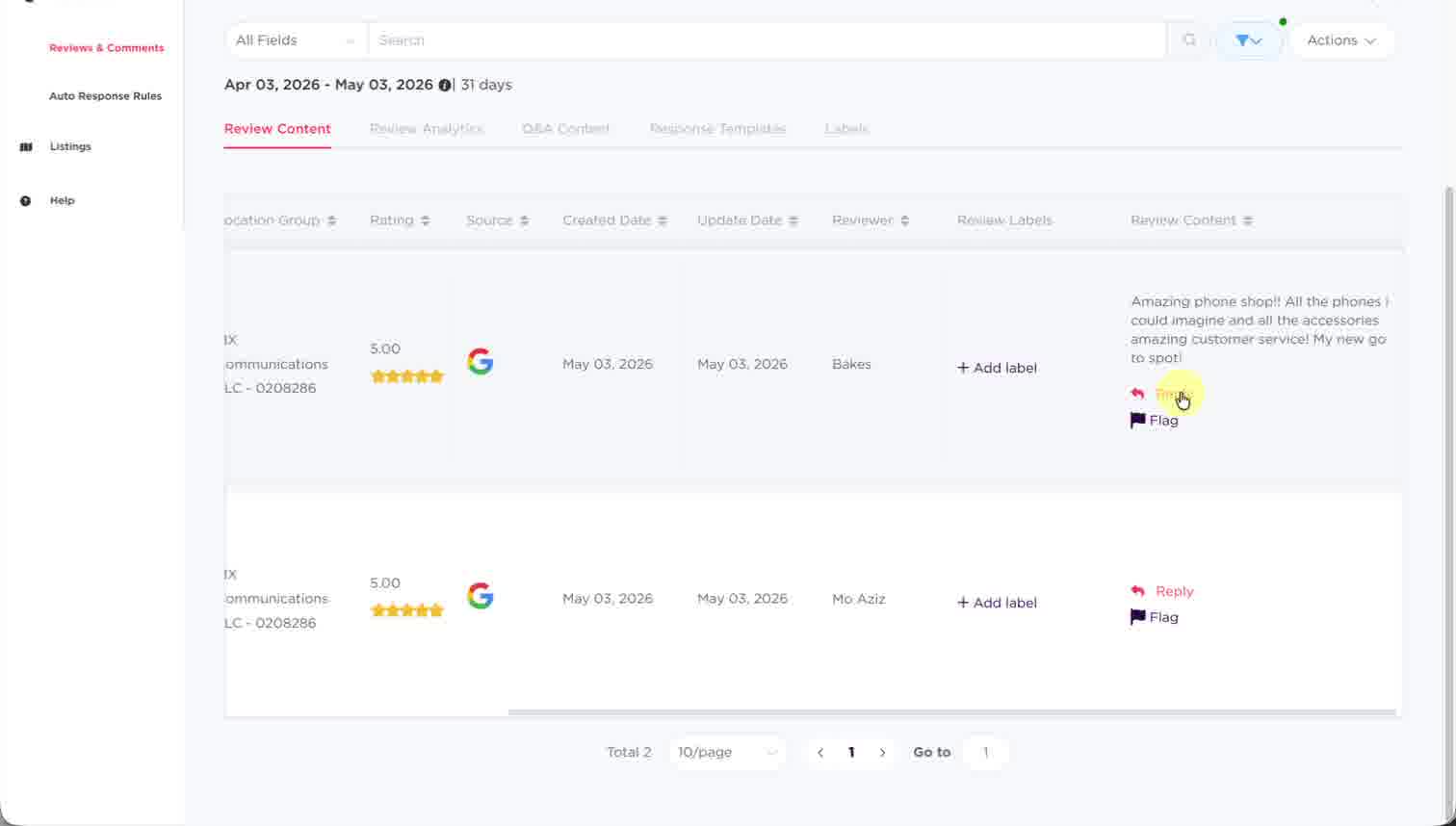
Don't see Reply? Reviews that have already been answered show "Edit" instead. The Flag action just below Reply lets you escalate inappropriate content.
reviews / pending
Review row with Reply button
2
Click Reply on this review
03/ 06

The Review Response pop up opens.

A Review Response pop up appears. The customer's review sits on the left so you can read it while you write. Your reply goes in the box on the right.
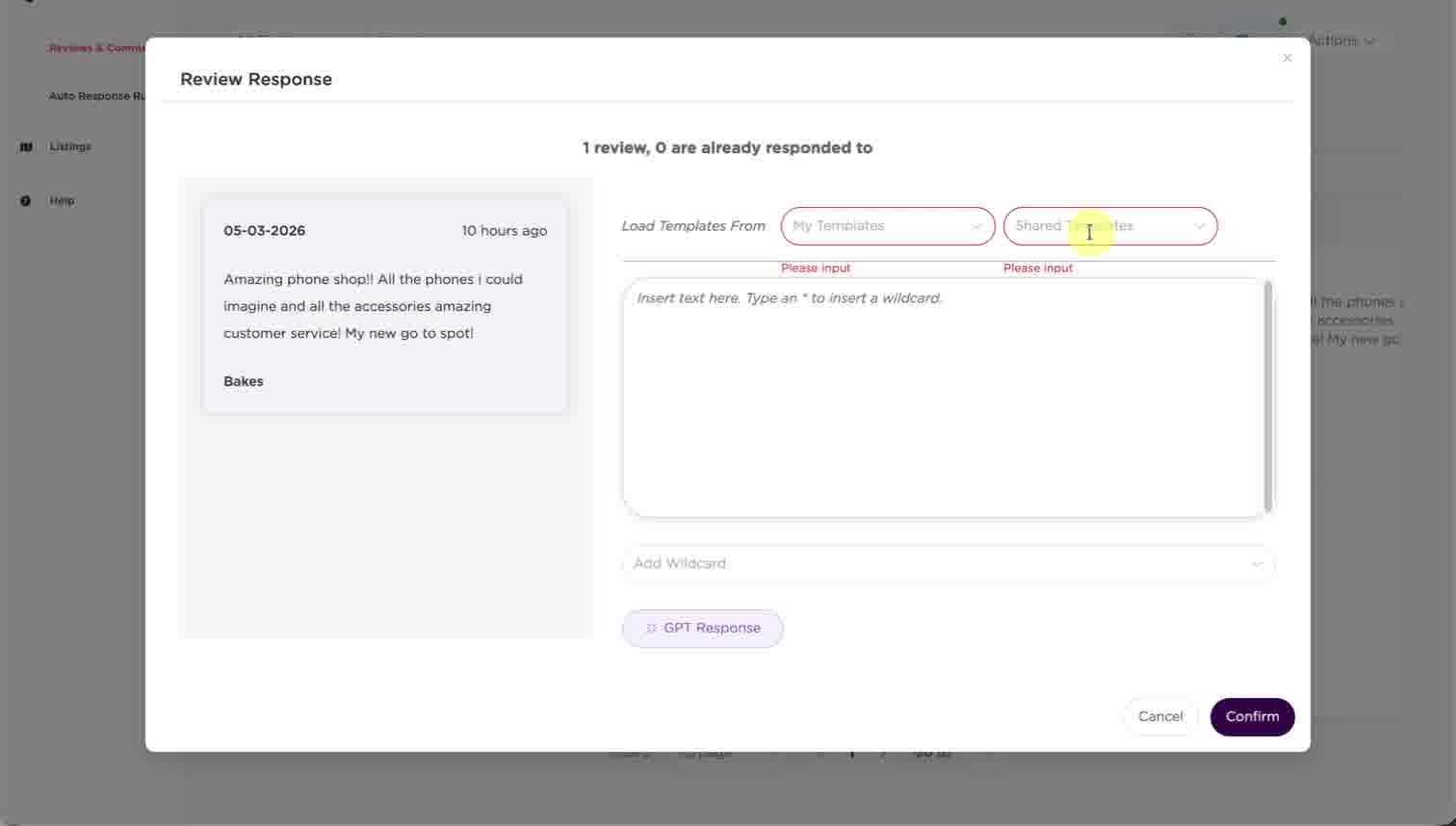
The layout Two template loaders sit at the top, the message editor in the middle, an Add Wildcard picker below it, and a GPT Response button to draft a reply with AI.
reviews / respond
Review Response modal opened
A
Customer's review
B
Template loaders
C
AI-drafted response
04/ 06

Choose a response template.

Click My Templates for your personal saved responses, or Shared Templates for team-wide approved ones — like Thank you · 5 Stars or 3 stars no feedback. The selected template is loaded straight into the editor.
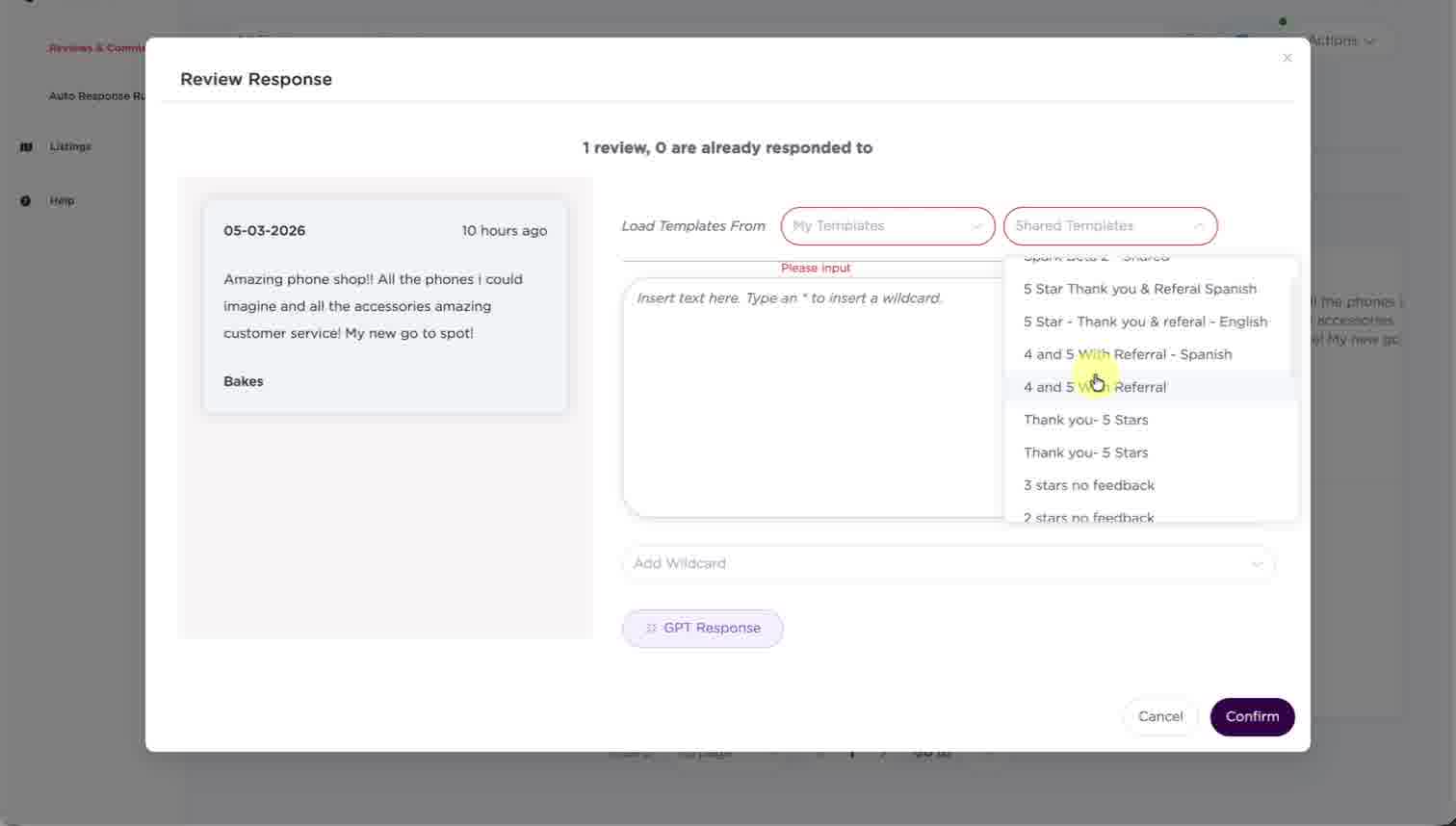
Why templates Templates keep your tone consistent across hundreds of reviews. The dropdown is grouped by use case — five-star thank-yous, low-rating recoveries, referral asks — and you can still edit any of them after loading.
reviews / respond
Shared templates dropdown opened
4
Pick a template — it loads into your reply
05/ 06

Personalize with wildcards.

Click into the Add Wildcard picker and choose a token like *Customer Name. It drops into your reply at the cursor and gets replaced with the real value when the response is sent.
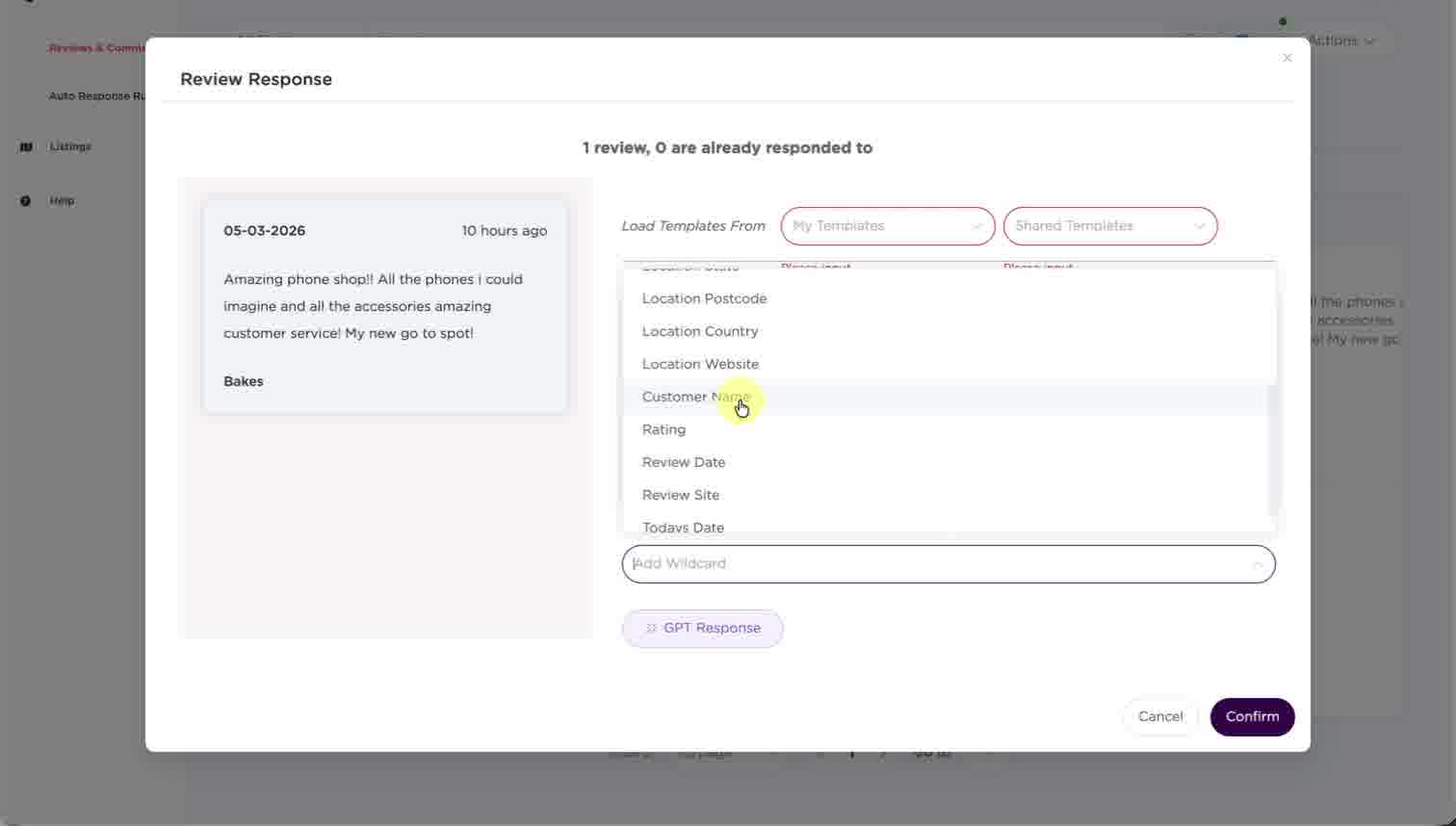
Available wildcards Customer Name, Rating, Review Date, Review Site, Today's Date, Location Postcode, Location Country, Location Website — and more. Use them once or chain several together.
reviews / respond
Wildcard dropdown showing Customer Name
*Customer Name
5
Tokens auto-fill at send time
06/ 06

Review, then click Confirm.

Read the response one more time — wildcards still appear in their *Token form here, that's expected. When you're ready, click the deep-purple Confirm in the bottom-right corner. Your reply is published to the source platform.
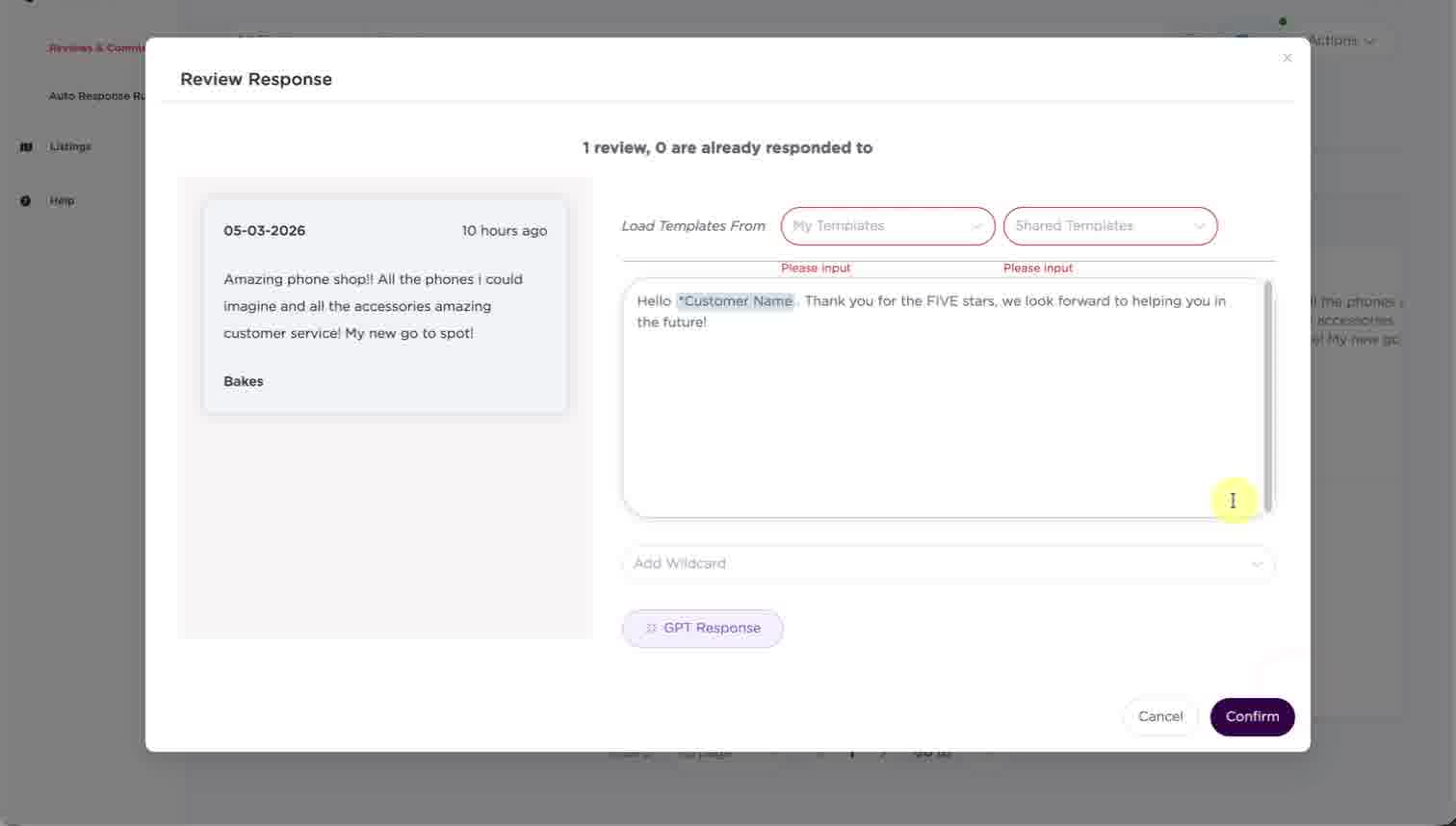
Changed your mind? Click Cancel to discard the draft, or hit the × in the top-right to close without sending. Nothing is published until you press Confirm.
reviews / respond
Final response ready, Confirm button highlighted
6
Click Confirm to publish
Reply published
Recap · The Whole Flow

Six clicks from review to reply.

You now know the entire path. Here's the speed-run version — bookmark this page, or keep this tab open while you work through your review queue.

Tip · 01
Templates save hours
Build out 4–5 templates per rating tier and you'll respond to most reviews in under 15 seconds.
Tip · 02
Wildcards keep it human
Adding *Customer Name to a templated reply makes it feel personal at zero extra effort.
Tip · 03
Auto-Response Rules
For high volume, set up rules under "Auto Response Rules" to handle 5-star thank-yous automatically.